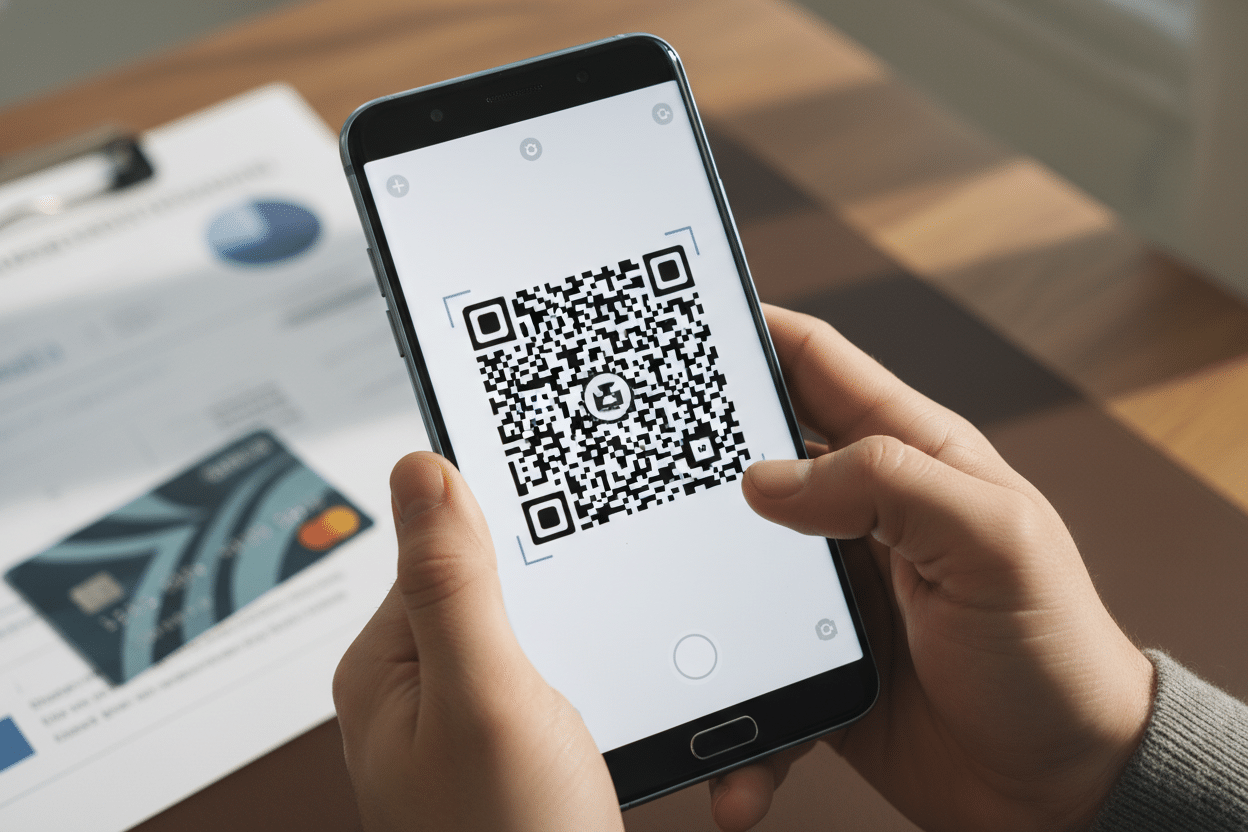

QR codes have become a cornerstone of modern financial transactions — from instant bank transfers to contactless payments at checkout. On Samsung devices, scanning a QR code takes seconds, but doing it safely in a financial context requires knowing exactly which method to use and what to watch out for. Here's everything you need to know.
The financial world has quietly standardized around QR codes. Banks, payment platforms, and fintech apps now rely on them to initiate transfers, authenticate logins, and confirm transactions. And Samsung, with its deep integration of scanning tools across its Galaxy lineup, is particularly well-equipped for this use case. But "well-equipped" doesn't mean "plug and play" — there are several methods available, each with its own strengths depending on your situation.
QR codes and their growing role in financial transactions
A QR code (Quick Response code) is a two-dimensional barcode that encodes data — a URL, a payment reference, an account number — in a matrix of black and white squares. In finance, this technology has become a standard for encoding transaction instructions that would otherwise require manual input of long strings of numbers.
Why banks and payment apps rely on QR codes
The appeal is straightforward: a QR code eliminates manual entry errors. When you're transferring money to a merchant or another person, mistyping a single digit can send funds to the wrong account. A QR code encodes the exact destination and amount, leaving no room for human error. This is why platforms like PayPal, Lydia, Revolut, Wise, and virtually every major mobile banking app now generate QR codes for payment requests.
In markets like China, QR code payments via WeChat Pay and Alipay have essentially replaced cash. Europe and North America are following, with Visa and Mastercard both integrating QR-based payment flows into their mobile infrastructures. The SEPA zone has also seen increased adoption through banking apps that use QR codes to pre-fill transfer forms instantly.
What financial data a QR code can contain
A payment QR code typically encodes the recipient's account identifier (IBAN, phone number, or wallet address), a transaction amount, a payment reference, and sometimes a currency specification. When your banking app reads this code, it populates a transfer form automatically — you review, confirm, and the transaction executes. The QR code itself doesn't transmit funds; it's a structured instruction set that your app interprets.
A QR code used in a financial context never stores your banking credentials or card numbers. It encodes transaction parameters only. The actual authentication and fund movement happen within your secured banking app.
Preparing your Samsung device to scan QR codes
Before scanning anything, make sure your device is properly configured. Samsung has evolved its QR scanning capabilities significantly across its software generations, and the method available to you depends partly on which version of One UI your device runs.
Checking your One UI version and camera settings
On any recent Galaxy device running One UI 2.0 or later (Android 10 and above), the native camera app includes a built-in QR scanner. To verify it's activated, open the Camera app, tap the gear icon to access settings, and look for the "Scan QR codes" toggle. Make sure it's enabled. If your device is running an older version of One UI, this option may not be present — in that case, jump to the dedicated app methods covered in the next section.
To check your current One UI version: go to Settings, then About phone, then Software information. The One UI version number is listed there. Keeping your system updated is also relevant for security — QR code scanning in financial contexts should always happen on a device with current security patches applied.
Applications worth having for financial QR scanning
While Samsung's native camera handles most standard QR codes, financial applications embed their own scanners for a reason: they validate the QR code against their own payment network before processing anything. Samsung Pay, pre-installed on most Galaxy devices, includes QR code support for compatible merchants. Your bank's dedicated mobile app will almost certainly have its own scanner as well.
For generic QR scanning when you're outside a specific app environment, Google Lens (available through the Google app or the Assistant) is a reliable fallback. It handles QR codes natively and opens links or payment prompts in the appropriate app.
Methods to scan a QR code on Samsung
There are three main approaches on Samsung devices, and the right one depends on context.
Method 1: Using the native Samsung camera app
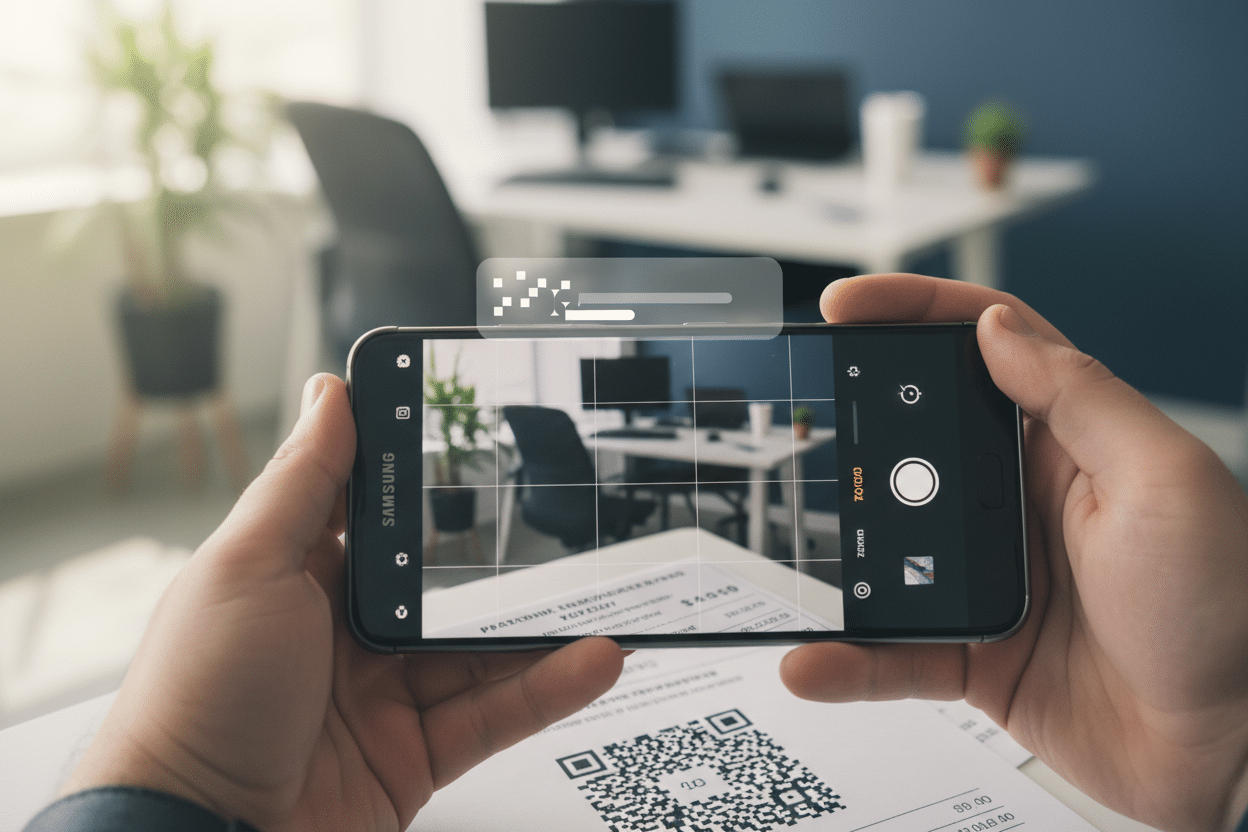
This is the fastest method for everyday use. Open the Camera app, point it at the QR code, and hold steady. Within one to two seconds, a notification banner appears at the top of the screen with the decoded content — a URL, a payment link, or an app deep link. Tap the banner to act on it.
For financial QR codes, this typically opens your banking app or a payment page directly. The process is seamless when the QR code links to a well-structured payment URL that your installed apps recognize.
If the camera scan opens a browser URL instead of a trusted financial app, stop. Do not enter any banking credentials on a web page reached via QR code unless you have independently verified the domain. Phishing attacks frequently use QR codes to redirect victims to convincing fake banking pages.
Method 2: Through the notification panel quick-access scanner
Samsung includes a QR scanner shortcut in the Quick Settings panel (the panel you access by swiping down twice from the top of the screen). If the shortcut isn't visible by default, tap the pencil icon to edit the panel and add it. Tapping this shortcut launches a dedicated scanning interface — separate from the camera app — that decodes the QR code and displays its content before you act on it.
This method is particularly useful in financial contexts because it gives you a preview of the encoded data before opening any link or app. You can verify the destination before proceeding.
Method 3: In-app QR scanning within financial applications
For actual payment transactions, always use the scanner built into your financial app rather than the native camera. Open your banking app, Samsung Pay, Revolut, PayPal, or whichever platform applies, and look for the QR code icon within the payment or transfer section. This scanner operates within the app's secure environment, validates the payment data against the platform's own systems, and handles the transaction flow end-to-end.
This approach is not just more secure — it's often the only way to complete the transaction correctly, since payment QR codes may use proprietary encoding that only the issuing platform's app can interpret fully.
Samsung Pay supports QR code payments at merchants who display a compatible code at checkout. Open Samsung Pay, tap the QR icon, scan, and confirm the amount. The transaction goes through your linked card or bank account with the same security layer as a tap-to-pay transaction.
Security and best practices when scanning financial QR codes
Scanning a QR code for a financial transaction is not meaningfully riskier than clicking a link in an email — which is to say, it carries real risks that discipline can eliminate.
Identifying legitimate QR codes
A QR code is a vector, not a guarantee. Anyone can generate a QR code that points to a malicious page or a fraudulent payment request. In physical environments — at a merchant's counter, on an invoice, on a bank's official communication — the risk is low. The risk spikes when a QR code appears on an unsolicited message, a printed flyer from an unknown source, or pasted over an existing QR code (a known attack method called QR code hijacking).
Before scanning a QR code for a financial transaction, verify its physical context. If you're at a point of sale, the code should be displayed on official branded material. On invoices, cross-check the payment details encoded in the QR against the invoice's printed figures. A legitimate payment QR code will never ask you to enter your PIN, password, or full card number after scanning — that's a red flag.
Protecting your Samsung device for financial operations
Keep One UI and your security patches updated. Samsung releases monthly security patches for its active device lineup; these patches close vulnerabilities that could theoretically be exploited through malicious QR codes that trigger system-level actions. Enable Samsung Knox protections if your device supports them — Knox provides hardware-level isolation for financial apps.
Use biometric authentication (fingerprint or face recognition) on your banking apps and Samsung Pay. Even if someone tricks you into scanning a malicious code, transaction confirmation requires your biometric — an additional barrier that stops most attacks cold.
Real-world use cases of QR codes in financial transactions
The practical applications of QR code scanning on Samsung devices in financial contexts are broader than most users realize.
Peer-to-peer payments and instant transfers
Every major P2P payment platform now offers QR codes as a payment method. In a restaurant split scenario, one person opens their Lydia or PayPal app, generates a payment request QR code for their share, and the other person scans it. The transfer completes in seconds, with no account numbers exchanged verbally and no risk of entry errors. Samsung's camera or the in-app scanner handles the read; the app handles the rest.
The same logic applies to business invoicing. A freelancer or small business can generate a QR code encoding their IBAN and the invoice amount, print it on the invoice, and the client scans it with their banking app to pre-fill the transfer form. Several European banks now accept this format natively, following the EPC QR code standard adopted across the SEPA zone.
Cryptocurrency and digital asset transactions
In crypto, QR codes encode wallet addresses — long alphanumeric strings that are practically impossible to type correctly by hand. Scanning a QR code to send Bitcoin, Ethereum, or any other asset to a wallet address is the standard method on mobile. Samsung's Galaxy devices with Samsung Blockchain Keystore use QR codes extensively for wallet address sharing and transaction signing.
For crypto transactions, always verify the first and last four characters of the wallet address after scanning. Malware known as “clipboard hijacking” can substitute a different address — QR scanning bypasses clipboard but not all attack vectors.
Bank authentication and secure login
Several banks use QR codes as a second authentication factor for web login. You log into your bank's website on a computer, a QR code appears on screen, and you scan it with your banking app on your Samsung device to confirm the session. This replaces SMS one-time passwords, which are vulnerable to SIM-swapping attacks. It's a significantly more secure flow, and Samsung's native camera handles the scan cleanly — the banking app then takes over to complete the authentication.
The trajectory is clear: QR codes are not a transitional technology in finance, they're becoming structural. As contactless and mobile-first payment habits solidify, Samsung device owners who know how to use these tools correctly — and safely — are simply better positioned to operate in the financial environment that's already here.